Getting Started
Set up Kedge and connect your first cluster in minutes.
Table of contents
- Overview
- Prerequisites
- Step 1: Build from Source
- Step 2: Run the Development Stack
- Step 3: Log In
- Step 4: Register an Edge
- Step 5: Start the Agent
- Step 6: Deploy a Workload
- What Just Happened?
- Connecting Your Own Cluster
- Next Steps
- Troubleshooting
Overview
This guide walks you through:
- Running the hub locally (development mode)
- Connecting an edge (k3s, k0s, kind, or any Kubernetes cluster)
- Deploying your first workload
For production deployments, see Helm Deployment after completing this guide.
Prerequisites
| Tool | Description |
|---|---|
| Go 1.25+ | Required to build from source |
| Docker | Container runtime |
| kind | Local Kubernetes cluster (for dev mode) |
| kubectl | Kubernetes CLI |
Step 1: Build from Source
Clone the repository and build all binaries:
git clone https://github.com/faroshq/kedge.git
cd kedge
make build
This builds three binaries in bin/:
| Binary | Description |
|---|---|
kedge-hub |
The central control plane server |
kedge-agent |
The agent that runs on each edge |
kedge |
The CLI for users |
Step 2: Run the Development Stack
The fastest way to try Kedge is using the development mode, which runs the full stack locally:
make dev
This starts:
- kcp — Multi-tenant API server
- Dex — OIDC identity provider
- Hub — Kedge control plane
- kind cluster — A local Kubernetes cluster for the agent
The dev stack uses hot-reload, so code changes are automatically picked up.
Wait until you see the hub is ready:
kedge-hub: listening on :9443
Step 3: Log In
Open a new terminal and authenticate:
make dev-login
This opens a browser for OIDC login. Use the development credentials:
- Email:
admin@example.com - Password:
password
After login, your kubeconfig is configured with a kedge context.
Step 4: Register an Edge
Create a new edge registration:
make dev-edge-create
This creates an Edge resource in the hub. You can view it:
kubectl --context=kedge get edges
Step 5: Start the Agent
Start the agent on the local kind cluster:
make dev-run-edge
The agent:
- Connects to the hub via a reverse tunnel
- Reports the edge status
- Watches for workloads to deploy
Check that the edge shows as connected:
kubectl --context=kedge get edges
The READY column should show True.
Step 6: Deploy a Workload
Deploy a sample workload:
make dev-create-workload
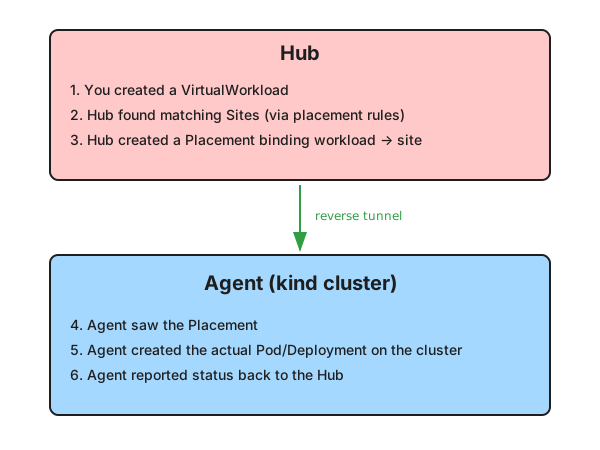
This creates a VirtualWorkload resource. The hub schedules it to available sites, creating Placement resources:
# View the workload
kubectl --context=kedge get virtualworkloads

# View the placement (binding to an edge)
kubectl --context=kedge get placements
The agent picks up the placement and reconciles the actual workload on the kind cluster:
kubectl --context=kind-kedge-dev get pods
What Just Happened?
Connecting Your Own Cluster
To connect a real cluster (k3s, k0s, etc.) instead of the dev kind cluster:
1. Create an edge registration
kedge edge create my-home-server
This outputs a bootstrap token.
2. Run the agent
On the target cluster, run the agent with the bootstrap token:
kedge-agent \
  --hub-url https://your-hub-url:9443 \
  --bootstrap-token <token> \
  --edge-name my-home-server
Or deploy via Helm (see agent chart documentation).
3. Verify connection
kubectl --context=kedge get edges
Next Steps
| Guide | Description |
|---|---|
| Security | Configure authentication — static tokens for personal use, OIDC for teams |
| Ingress | Expose the hub publicly so remote agents can connect |
| Helm Deployment | Deploy the hub to a real Kubernetes cluster |
Troubleshooting
Agent can’t connect to hub
- Check that the hub is reachable from the agent
- For local dev, both run on the same machine so
localhostworks - For remote agents, see Ingress to expose the hub
Login fails
- Check Dex is running: look for “dex: listening on :5556” in the dev output
- Check the browser console for OIDC errors
Workload not deploying
# Check edge status
kubectl --context=kedge describe edge <edge-name>

# Check agent logs
# (in dev mode, look at the terminal running make dev-run-edge)

# Check placement status
kubectl --context=kedge describe placement <placement-name>
View hub logs
In dev mode, logs are printed to the terminal. For Helm deployments:
kubectl -n kedge-system logs -l app.kubernetes.io/name=kedge-hub -c hub